When adding a FedEx account in PSCSHIP, you will need to add the Account and the Address that Fedex has associated with the account.
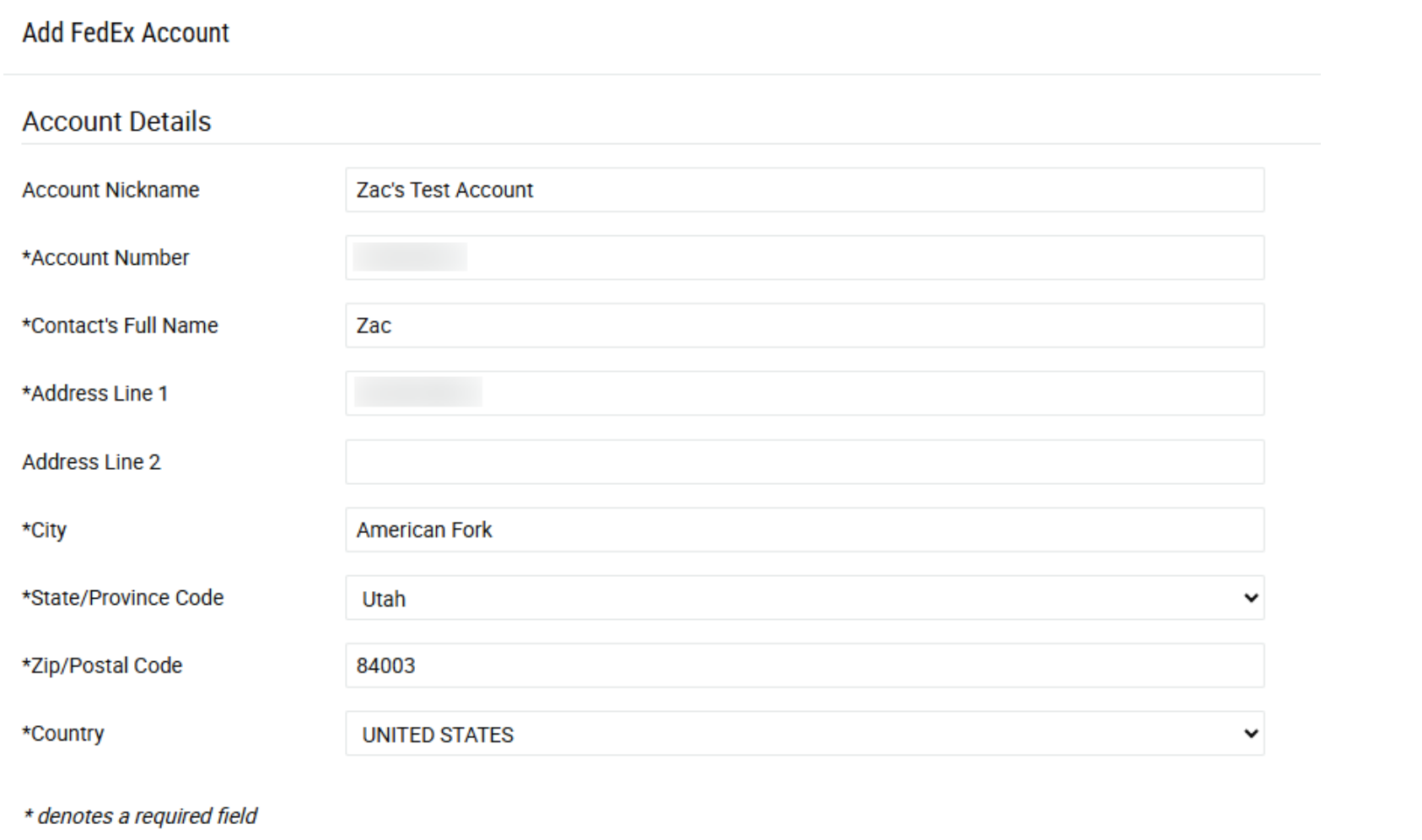
Click “Connect Account”
Fedex will require users to agree End User License Agreement(EULA). To agree, users will
need to:
- Scroll through the entirety of the document
- Check the checkbox acknowledging “I have read and accept the FedEx End-User License Agreement”
- Click proceed “Accept & Continue”
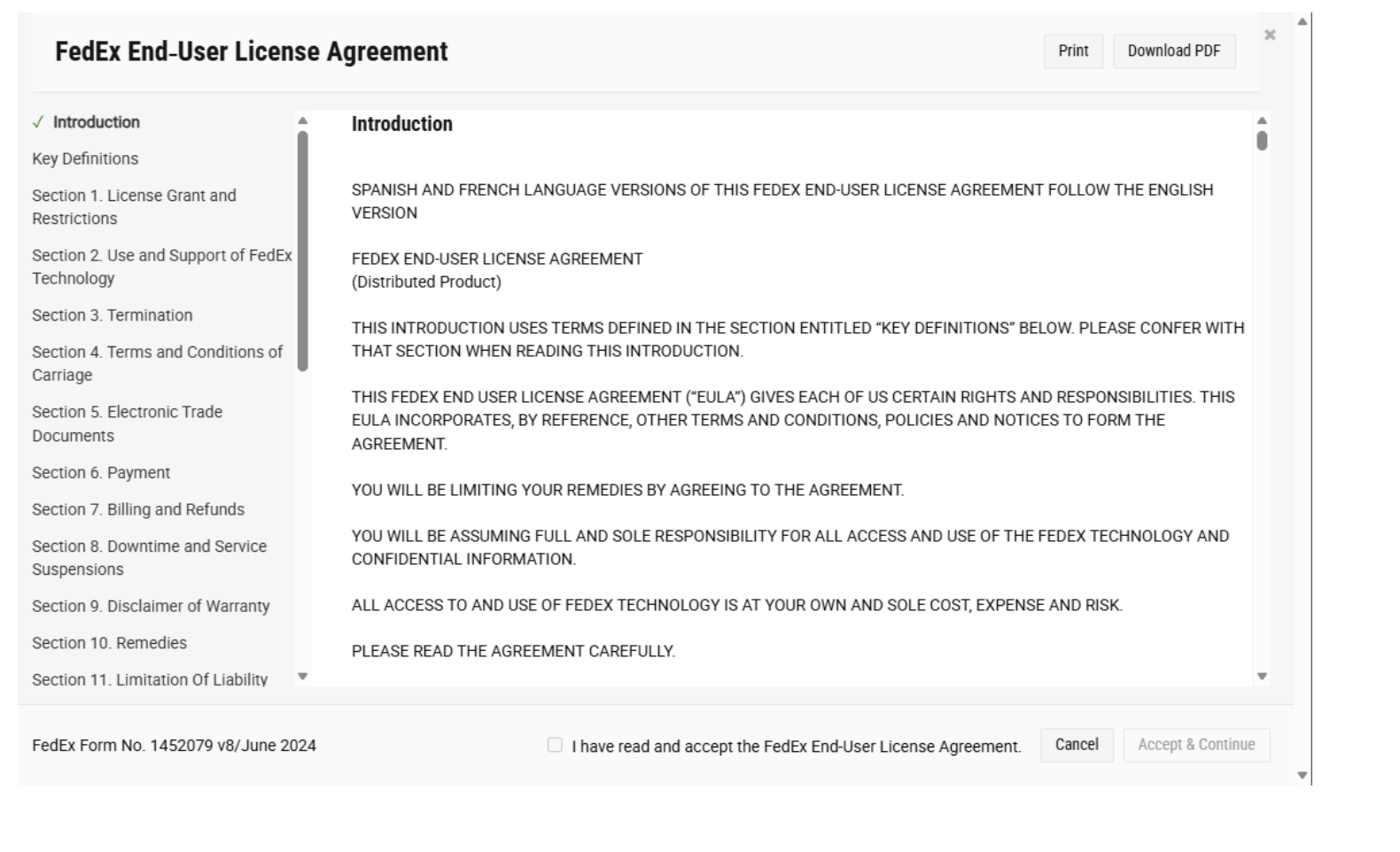
Note: It’s important to FedEx that the user attempts to read the EULA, so if the document is scrolled through too quickly, the checkbox will not be available to select.
If FedEx confirms the account matches the address information, you can progress to a screen to process the multi-factor authentication(MFA).
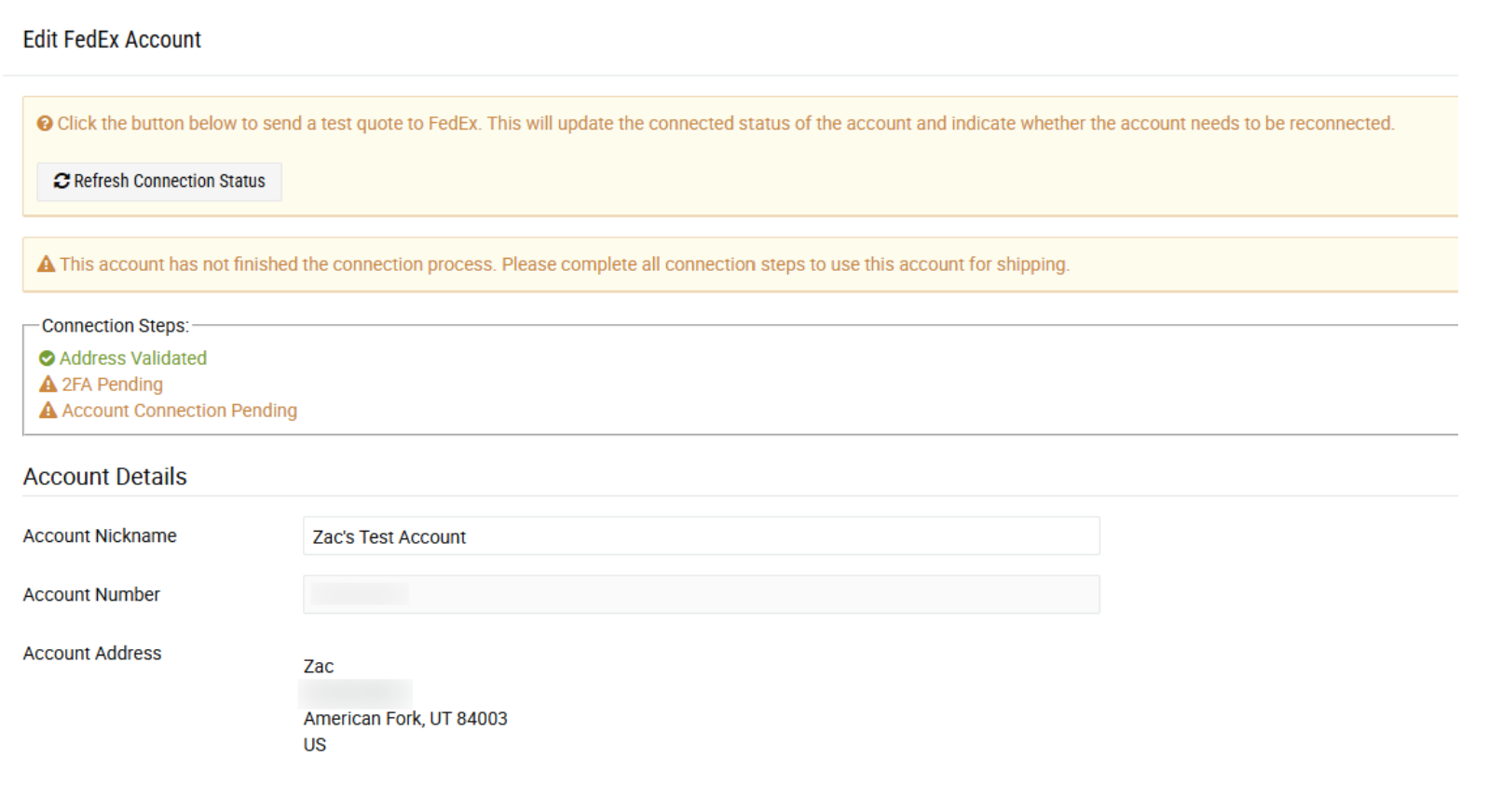
The Connection Steps will confirm that the address has been validated. When address validation is performed, Fedex will return the available methods by which the MFA can be completed.
Click “Initiate Multi-Factor Authentication” to proceed.
The next screen will allow you to select the MFA method from a drop-down menu.
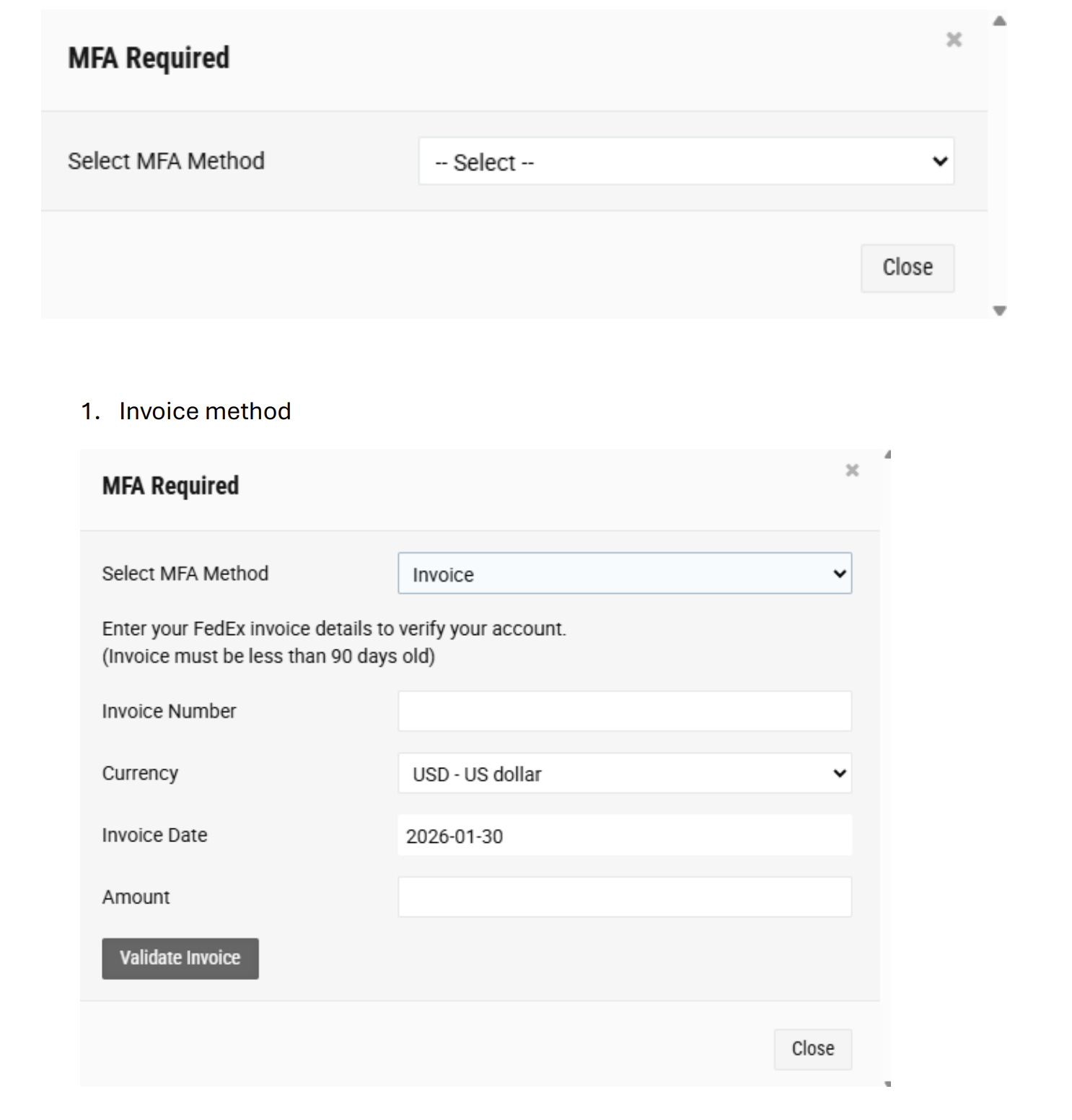
The invoice number, invoice date, and invoice amount must be entered. The invoice information utilized cannot exist on an invoice greater than 90 days old.
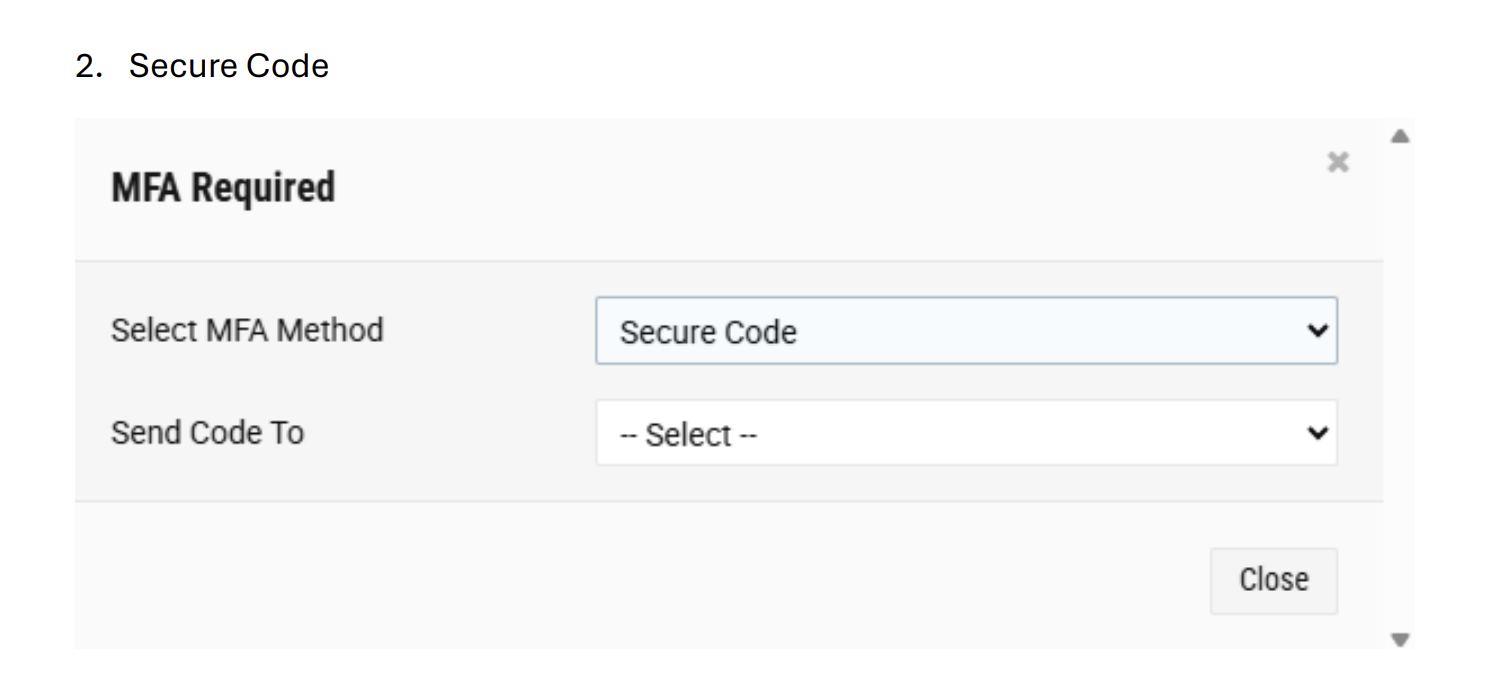
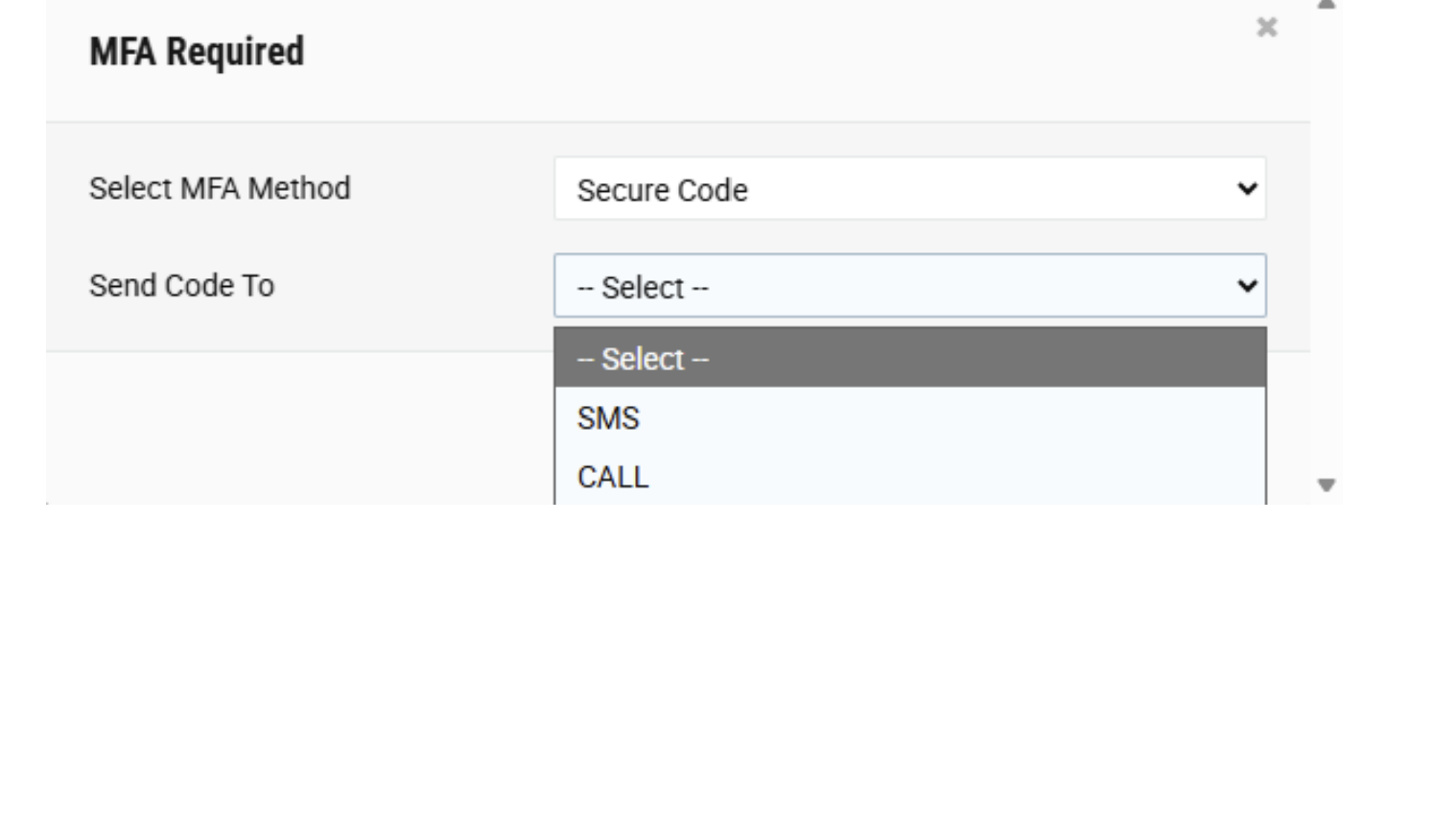
Utilize the “Send Code To” drop down menu select either Email, SMS, or call. Once selected, FedEx will send a code to the email address or phone number that FedEx has associated with the
account.
If FedEx does not have a phone number or email associated with the account, those options will not appear as options in the drop-down menu.
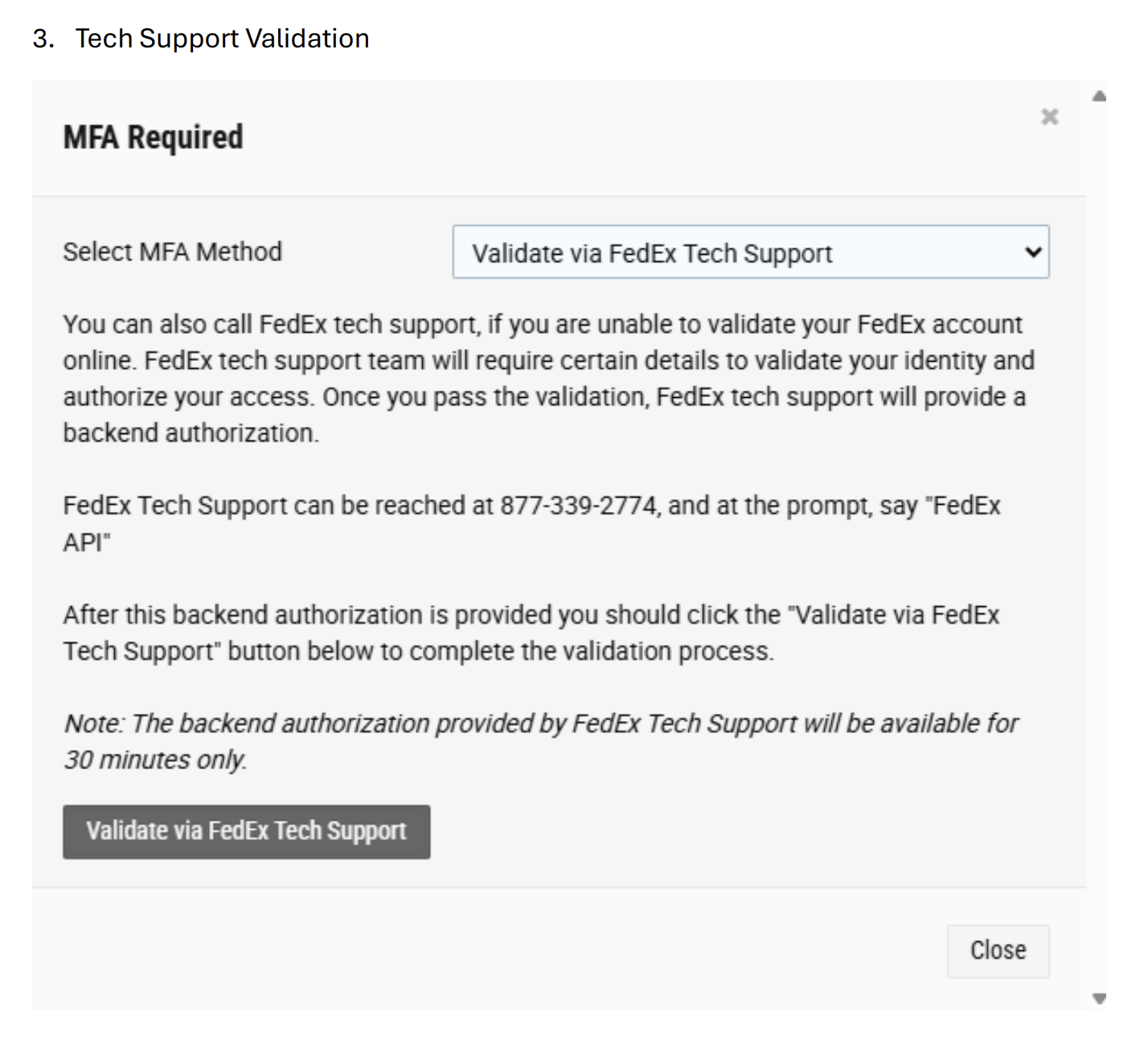
This option should only be utilized if methods 1 and 2 are not possible. The shipper will be required to call into FedEx tech support and answer validation questions. FedEx refused to provide examples of what questions might be asked.
If Tech Support approves validation, they will temporarily cease the MFA requirement for 30 minutes. Within that 30-minute window, the shipper must click the “Validate Via FedEx Tech Support” button to re-initiate the Address Validation call. If successful, the account MFA requirement will be fulfilled.
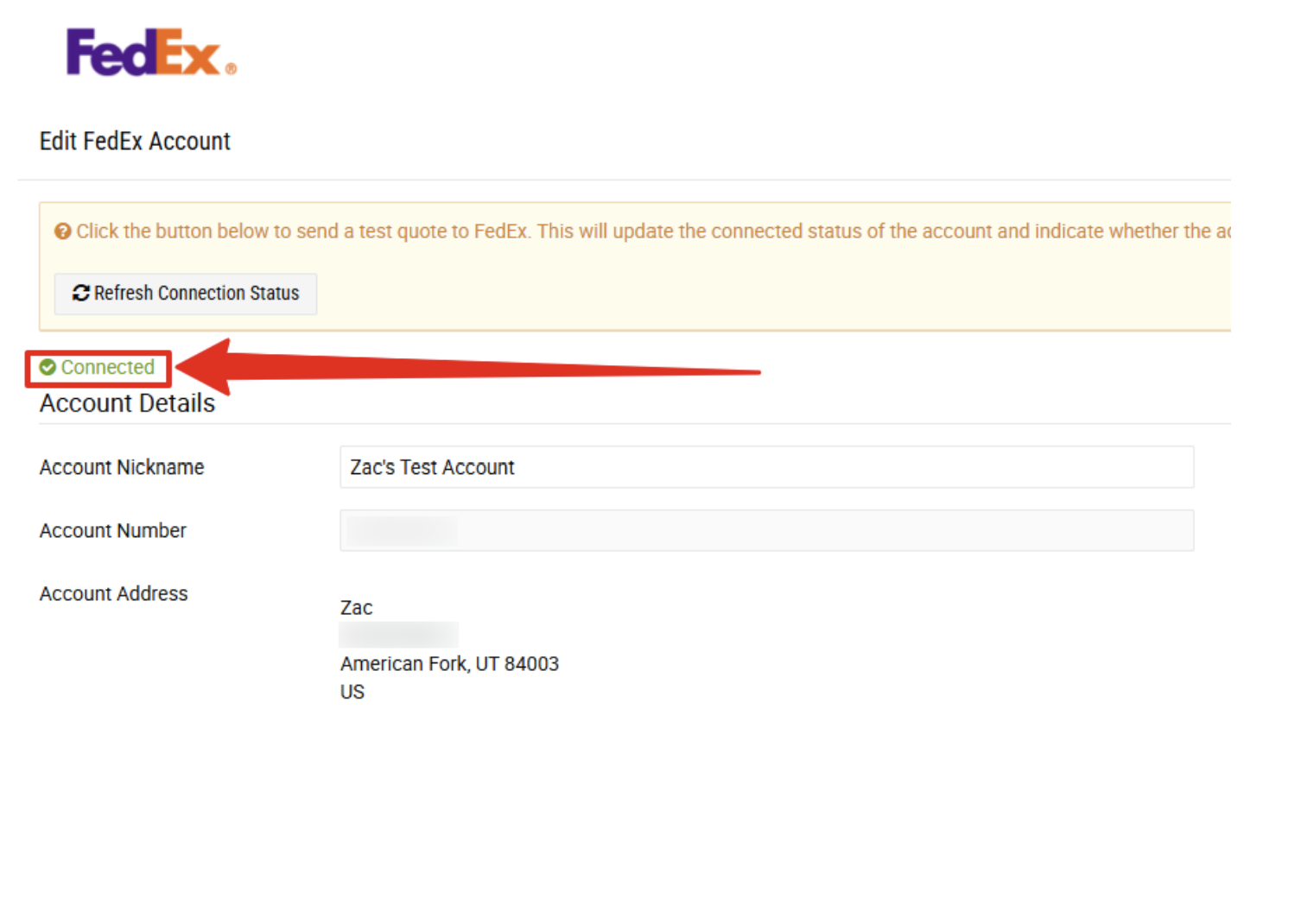
If successful, your account should show “Connected” in green.