
To increase security of your PSCSHIP login, we are implementing 2-factor authentication for your logins. You are probably familiar with this as many banks and other websites also use this feature. You will be forced to set this up on June 27, 2024, but you can migrate now if you wish.
To do this, log in to PSCSHIP.

Click on Settings in the bottom left corner.

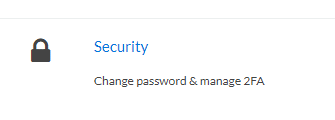
Then select Security from the Settings options that appear.
Click the blue button to “Enable Two Factor Authentication.”
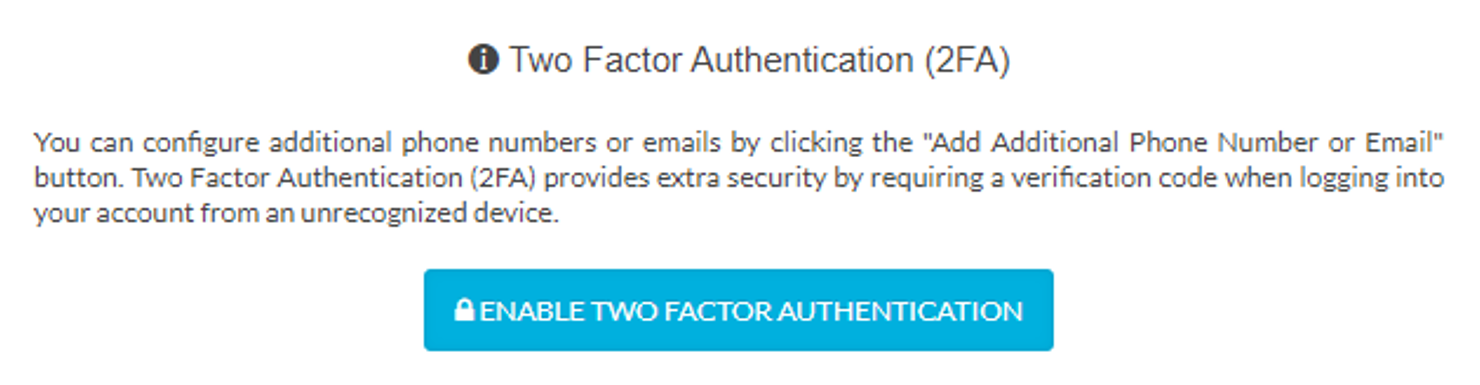
And that’s it! You’ll see that it has been configured.

Note that you can add other emails or even phone numbers so you can be texted the code if you would prefer.

This means that in the coming weeks, next time you log in, you will get emailed a security code that you will have to type in before you can be logged in.
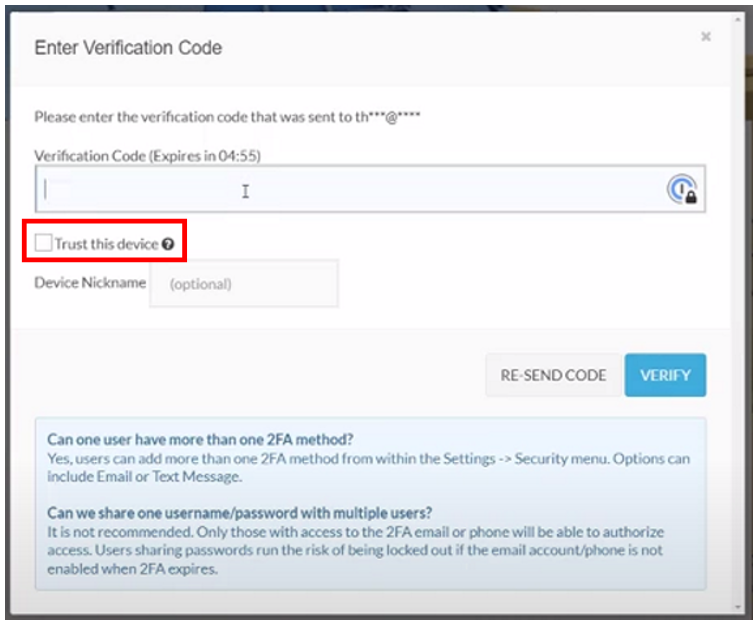
The verification code email will look like this.

When you put the code in, be sure to check the box to “Trust this device.” That means you won’t have to put in a code again from that computer for 90 days. Otherwise, you’ll get sent a code every time you log in.
If multiple people in your office are using a single login, we strongly recommend you add additional emails or phone numbers so that you aren’t reliant on the single email address you’re using as the login.
You can also set up other people with their own PSCSHIP logins so that they can manage their own 2-factor authentication for themselves. If you are an Admin, go to Settings and use User Management to add other logins. Or contact us at 800-827-7987 or customerservice@preferredship.com and we can set them up for you. We’re happy to help!